Introduction: Your AI Assistant Can't Touch Skool. Until Now.
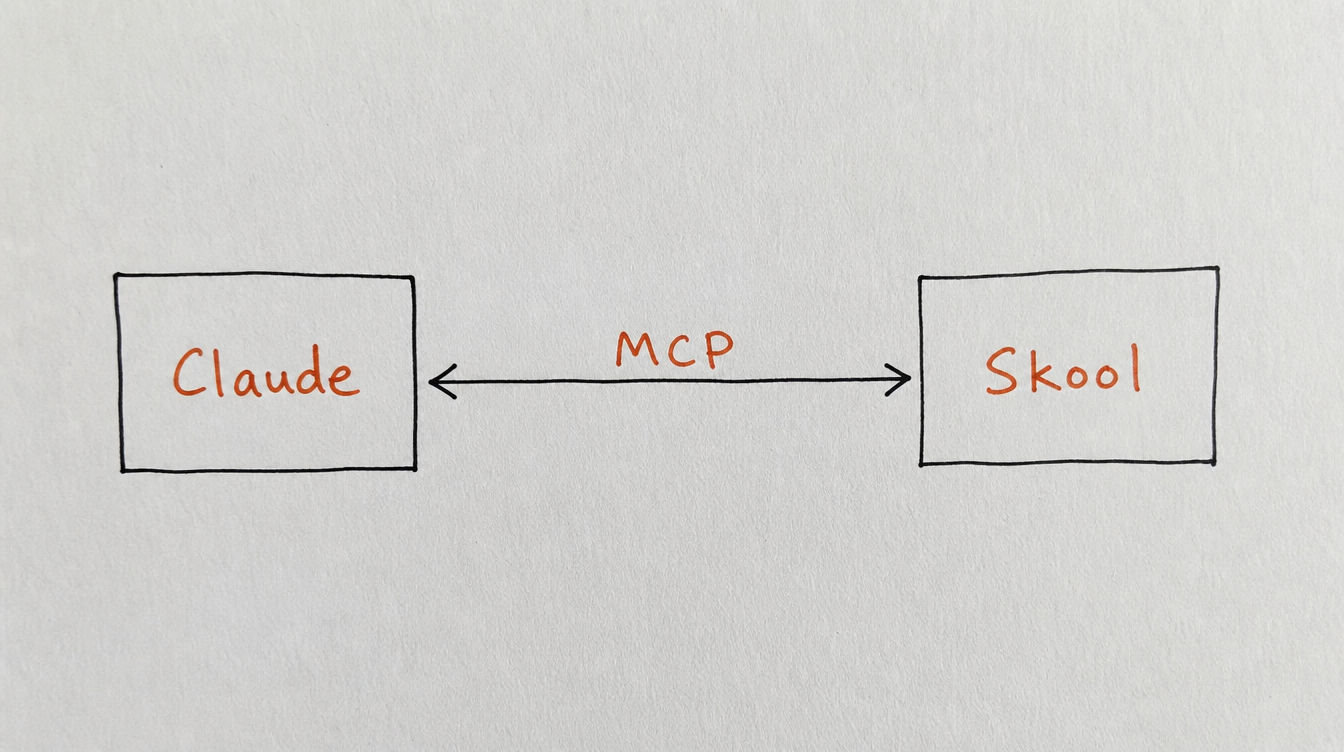
You're probably already using Claude or ChatGPT to draft community posts, plan content calendars, and write DM sequences. Then you hit the same wall every time: you have to copy the output, switch to Skool, and paste it in manually. Every single time.
That gap exists because Skool has no official API and no native way for AI tools to actually do things in your community. They can write, but they can't act.
MCP (Model Context Protocol) fixes that. It's an open standard, created by Anthropic, that lets AI assistants connect to real tools and take real actions instead of just generating text you have to paste somewhere yourself.
If you're searching:
- skool mcp
- connect claude to skool
- mcp server for skool
- cursor skool integration
This guide covers what MCP actually is, how StickyHive's Skool MCP server works, and exactly how to connect it to Claude, Cursor, or any MCP-compatible AI tool.
1. What MCP Actually Is
MCP stands for Model Context Protocol. Anthropic created it as an open standard so AI assistants like Claude aren't limited to conversation. Instead of copying an AI's answer and pasting it into another app, MCP lets the AI connect directly to that app and take the action itself.
Think of it as giving your AI assistant hands. You say "schedule this post for Thursday at 9am," and it happens, inside Skool, without you touching the interface.
MCP servers exist for all kinds of tools now: databases, code editors, project management apps. StickyHive built one specifically for Skool, because Skool itself never built the connection.
2. Why Skool Needs This More Than Most Platforms
Most platforms you'd want to connect an AI to already have some kind of official API. Skool doesn't. There's no first-party way to build an integration against it at all. The third-party API that exists covers basic webhooks and member events, nothing close to scheduling, workflows, or DM sequences.
That leaves a specific, recurring problem for anyone using AI to run their community:
- No native Skool MCP. Skool doesn't offer MCP support, so AI tools have no direct connection to your community.
- Manual publishing. You generate content in Claude or ChatGPT, then copy-paste it into Skool by hand, every time.
- No calendar awareness. Your AI has no idea what's already scheduled, where the gaps are, or what spaces you have.
- Can't batch anything. Scheduling 20 posts means 20 separate manual operations inside Skool's interface.
StickyHive built the first MCP server for Skool specifically to close this gap. It's not a workaround. It's a real connection between your AI tool and your community.
3. What You Can Do With Skool MCP
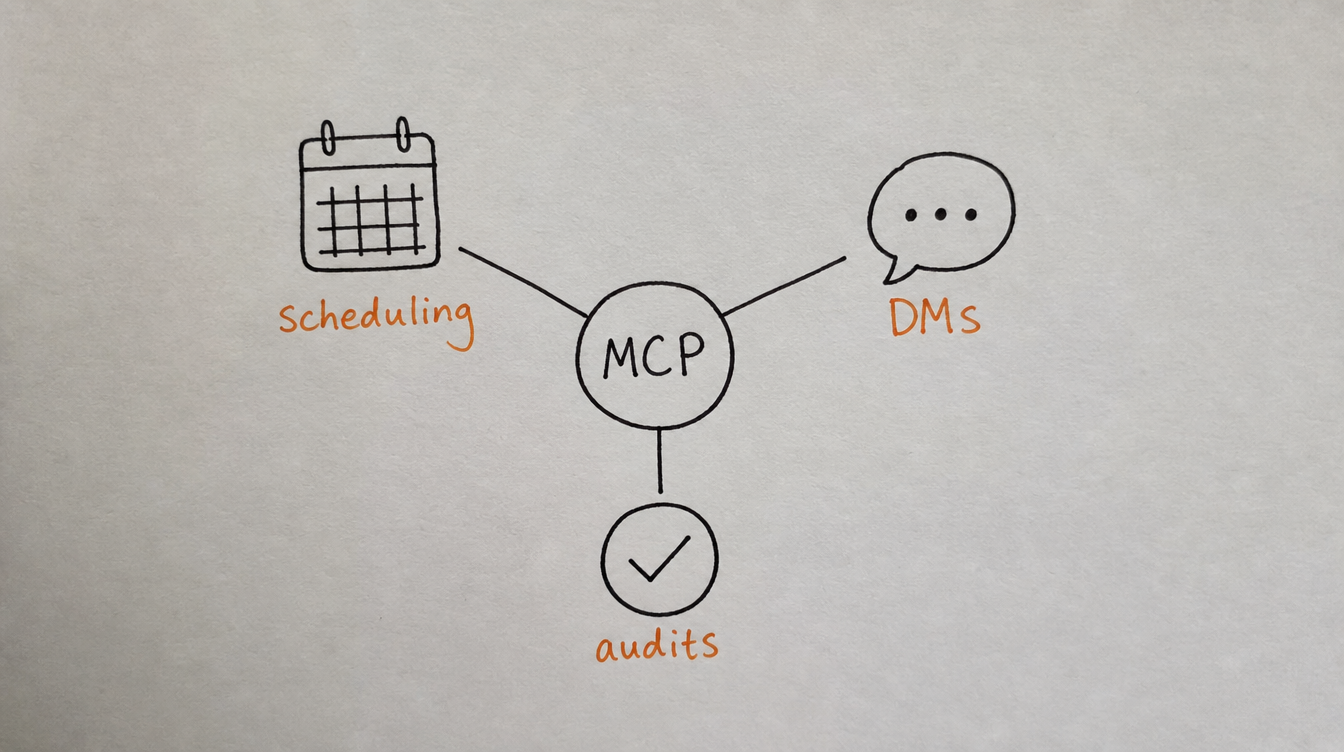
StickyHive's MCP server exposes 52 tools across six categories. Once connected, these become things you can just ask your AI to do, in plain language, inside your normal Claude or Cursor conversation.
Posts and scheduling
Create, edit, reschedule, or instantly publish posts. Find open gaps in your content calendar. Batch-schedule a week of drafts with even spacing. Add polls, pin posts, or set an auto-first-comment, all in one request.
Workflow automation
Build trigger-condition-action workflows (member joins, send a DM; post created, notify your team). Test a workflow with sample data before it goes live. View run history and retry anything that failed.
DM sequences
Build multi-step DM campaigns with delays and branching, for onboarding, nurturing, or re-engaging quiet members. Enroll members individually or let a workflow auto-enroll them. Track who's on which step.
Course management
Create courses, add sections and pages, write rich content, embed video, reorder modules, and publish or unpublish, all without opening Skool's classroom editor.
Community health audits
Run a full lifecycle audit across 8 stages (positioning, onboarding, engagement, retention, and more) to find the first broken link in your community, then drill into the specific metrics behind it.
Community management
List your connected communities and spaces, and read or rewrite your public about page directly from a conversation with your AI.
4. Setup: Connecting Claude or Cursor to Skool
The whole process takes about 5 minutes and doesn't require writing any code.
- Connect your Skool community to StickyHive. Sign up and connect via the Chrome extension. This is the same 2-minute setup used for scheduling and automation.
- Generate an API key. In StickyHive, go to Settings, then Developer, and generate a key. This is what authenticates the MCP connection.
- Add the server to your AI tool. Add StickyHive's MCP server URL to your Claude Desktop configuration, Cursor settings, or any other MCP-compatible client.
- Start talking. Ask your AI to check your content calendar, schedule a post, or audit your community health. Everything from here happens in natural language.
The server uses SSE (streamable HTTP) as its transport and OAuth 2.1 for authentication, so any MCP-compliant client can connect the same way.
5. A Real Conversation, Start to Finish
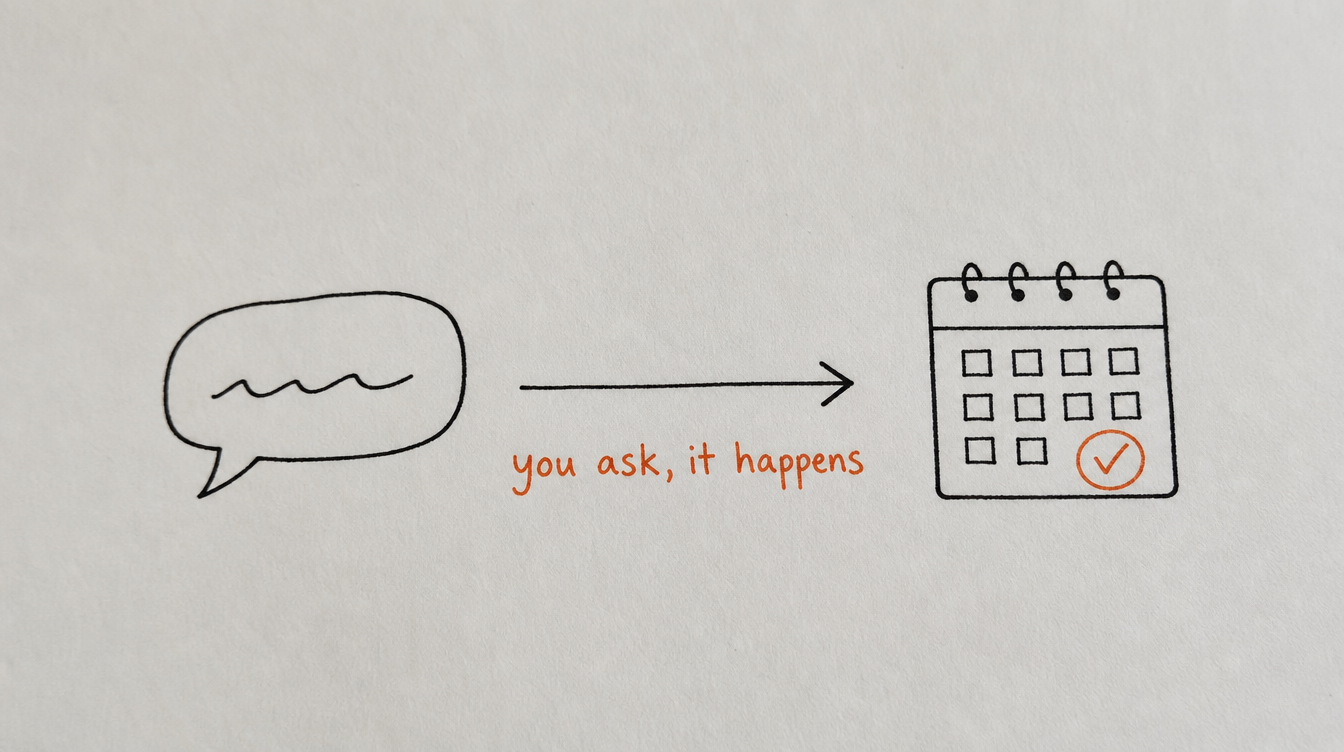
Here's what an actual planning session looks like once the connection is set up:
You: "What does my content calendar look like next week? Any gaps in the Community space?"
Claude: "I checked your calendar. You have posts scheduled Monday 9am and Wednesday 2pm, but nothing Tuesday, Thursday, or Friday. That's 3 open slots with good engagement windows at 9am and 12pm."
You: "Create 3 engagement posts for those gaps. Mix of question prompts and value posts. Schedule them at 9am each day."
Claude: "Done. I've created and scheduled 3 posts: Tuesday 9am, a question prompt. Thursday 9am, a value post. Friday 9am, a weekend challenge prompt. All scheduled in your Community space. Want me to adjust any of them?"
No copying, no pasting, no switching tabs. The whole exchange happens in one conversation.
6. Is This Actually Secure?
This is the first question most people ask, and it's a fair one. StickyHive's MCP server uses OAuth 2.1, the same authentication standard used by Google and Microsoft. Your AI tool authenticates with a scoped API key that only has access to the operations you've enabled. Your Skool password is never stored, and all data is encrypted in transit and at rest.
7. Frequently Asked Questions
Does Skool have native MCP support?
No. Skool doesn't offer native MCP support or an official first-party API. StickyHive built the first MCP server for Skool, letting AI tools like Claude and Cursor schedule posts, manage calendars, and automate publishing inside your community.
Which AI tools work with this?
Any MCP-compatible client, including Claude Desktop, Cursor, Windsurf, and Cline. The server uses standard OAuth 2.1 and SSE transport, so any tool that supports the Model Context Protocol can connect.
Do I need to know how to code?
No. Setup is adding a server URL to your AI tool's settings. Everything after that is natural language. No terminal commands, no API calls to write by hand.
Is this different from just using ChatGPT to write posts?
Yes. Writing content with AI has always been possible. The difference is that once MCP is connected, your AI can actually publish, schedule, and manage that content inside Skool directly, instead of you copying its output and pasting it in yourself.
What happens if Skool changes their interface?
StickyHive maintains the underlying integration, so it keeps working as Skool's platform evolves. You don't need to update anything on your end.
8. Conclusion and Next Steps
MCP is a genuinely new way to run a Skool community: your AI assistant stops being a text generator you copy from, and starts being something that can actually act inside your community.
Your next steps:
- Connect your Skool community to StickyHive (2-minute setup)
- Generate your API key under Settings, then Developer
- Add the MCP server to Claude Desktop or Cursor
- Ask your AI to check your content calendar and see what it finds
Start Free 7-Day Trial (no card required) →
Related reading: